
How To Create A Group Message
This guide provides step-by-step instructions for creating group messages in Develop.Me, allowing admins to communicate with multiple users, share course documents and assignments, and keep conversations organized within the platform.
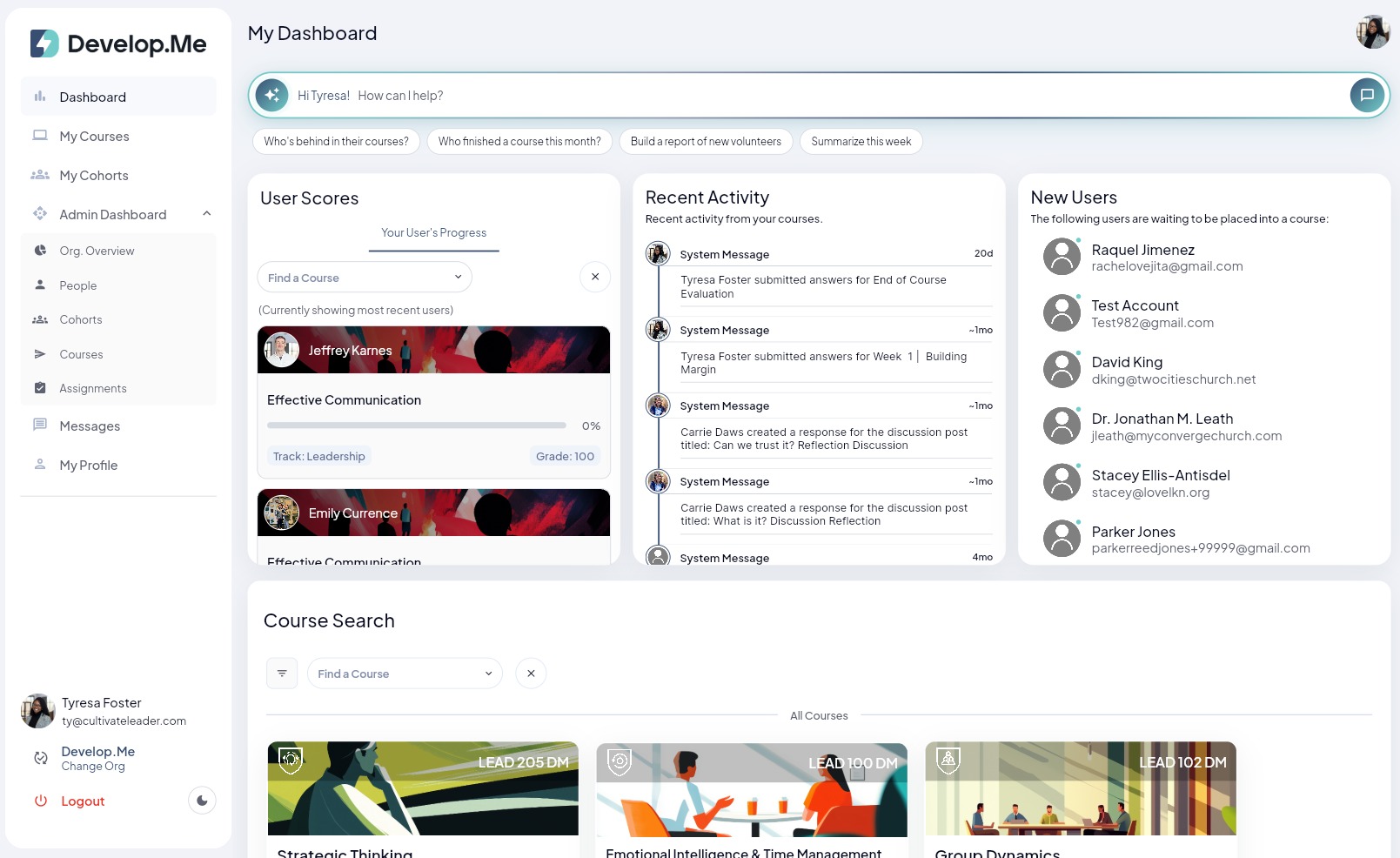
1. Navigate to the “Message” tab, from the left-hand menu.
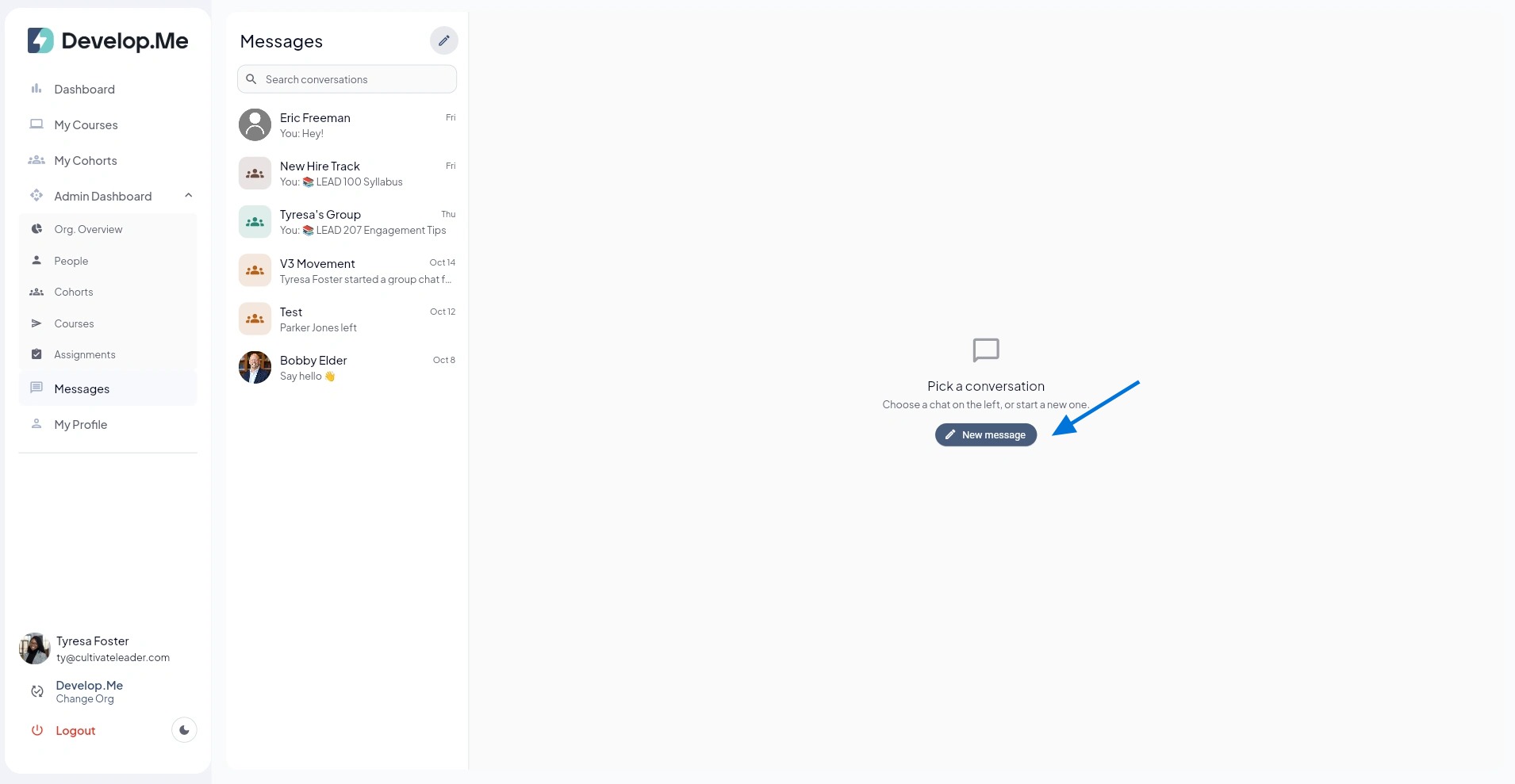
2. Next, click "New Message" to start a new conversation.
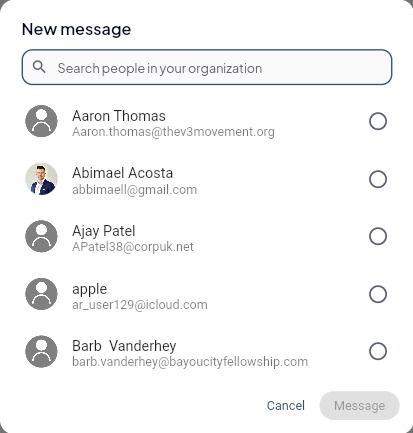
3. In the “New Message” window, use the search bar to find users within your organization. Select the users you want to include in the group conversation by clicking the circle next to each name. Once you've selected all participants, click “Message” to begin the conversation.
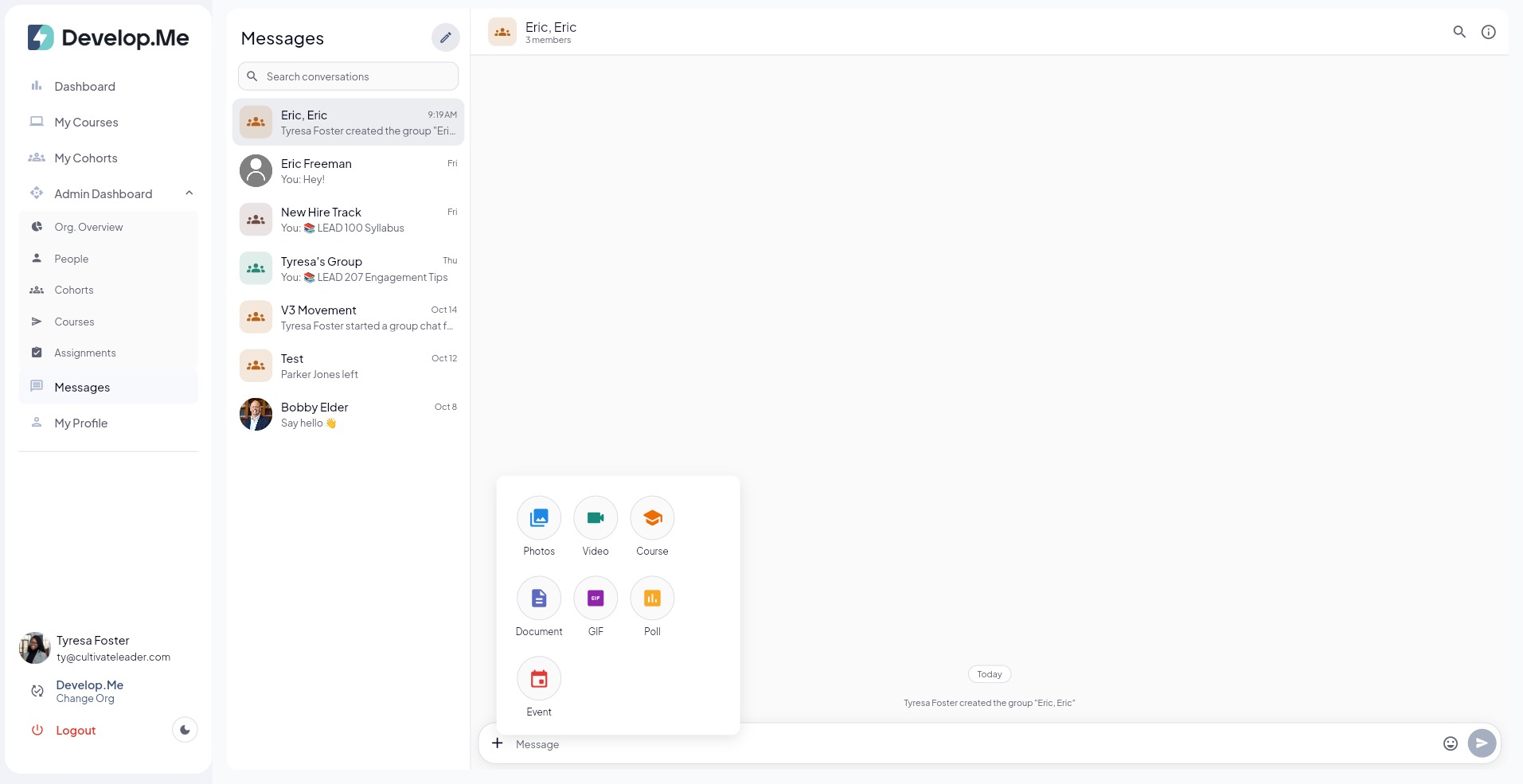
4. Once your group message has been created, you can begin communicating with participants. Type your message in the message field at the bottom of the screen and click the "Send" button.
To include additional content, click the “+” icon next to the message field. You can select from the following options:
- Photos: Share images directly within the conversation.
- Video: Attach videos to your message.
- Course: Share course content and resources with group members.
- Document: Attach files and documents for participants to access.
- GIF: Add animated GIFs to your conversation.
- Poll: Create polls to gather feedback or responses from group members.
- Event: Share events with your group.
Note: These features allow you to share resources, communicate, and engage with group members directly within Develop.Me, eliminating the need for external messaging platforms.
5. Congratulations! You’ve successfully created a group message.