
How to Schedule Course Automatic Re-Enrollment
This guide provides step-by-step instructions for scheduling user automatic re-enrollment in Develop.Me. These features allow admins to automatically re-enroll users in recurring training, such as annual compliance or leadership development courses.
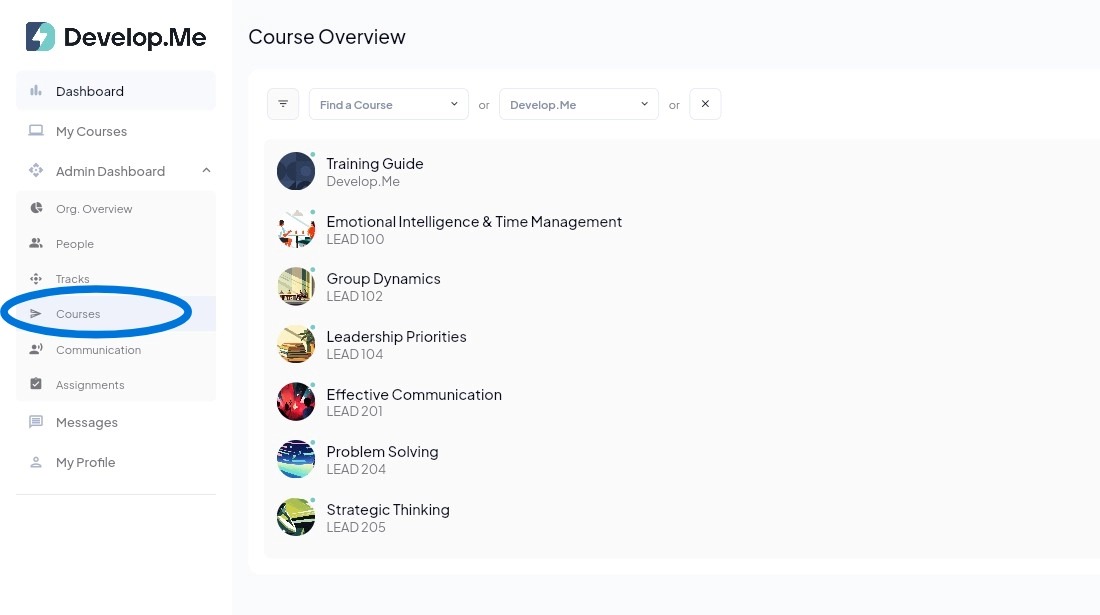
1. Navigate to the "Courses" tab in the left menu bar.
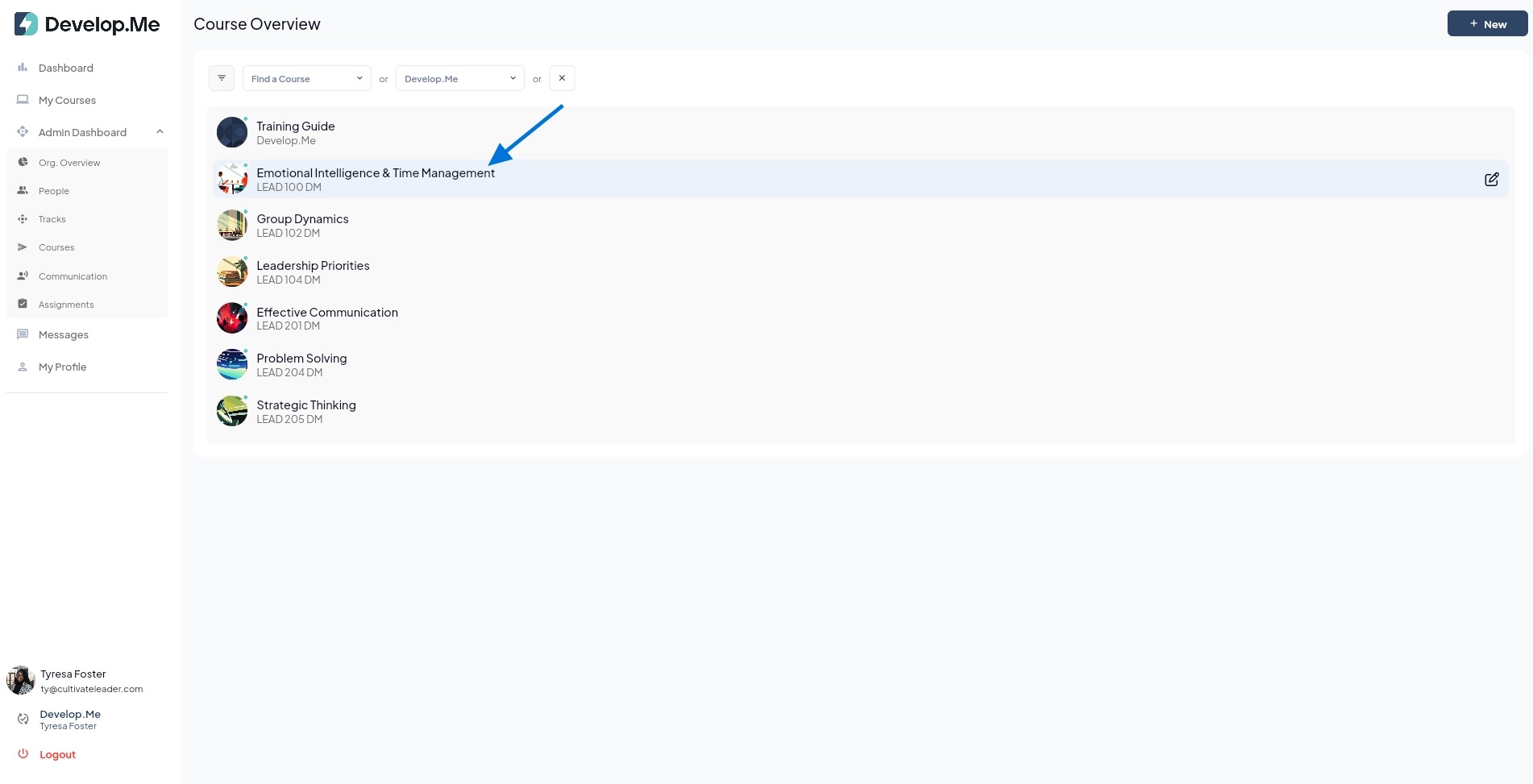
2. Next, select the course for which you want to set automatic re-enrollment for users.
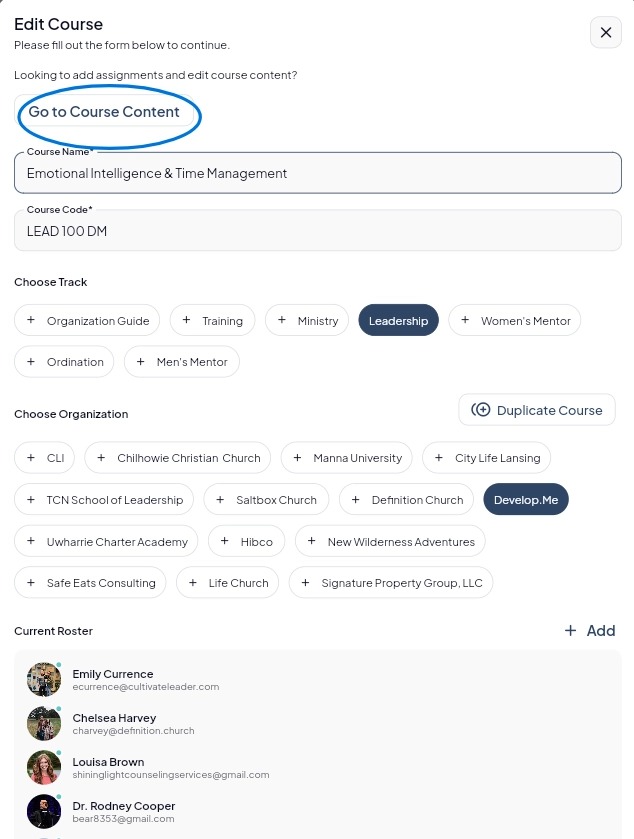
3. Click on “Go to Course Content” to access the full course and manage all course access dates.
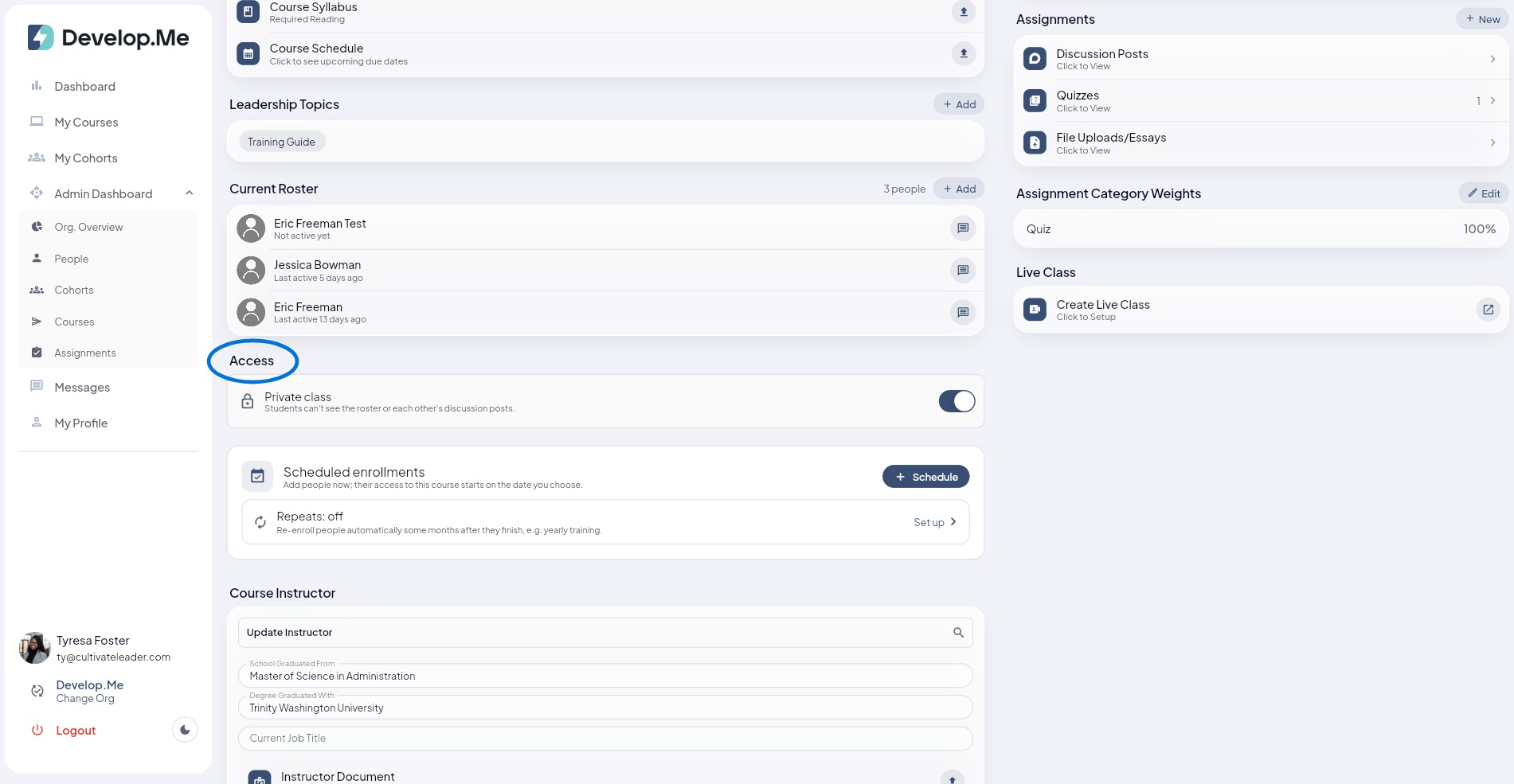
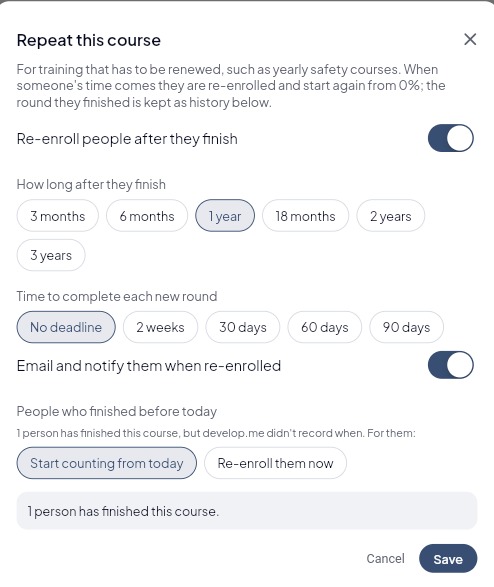
4. Under the "Access" section, click "setup" to configure automatic re-enrollment for users.
5. Select the desired re-enrollment frequency. For annual training, choose 12-month interval so users are automatically re-enrolled on year after completing the course. Review your settings and save.
6. Congratulations! You've successfully scheduled automatic re-enrollment for a course.