
How To Merge A User Profile
This guide provides step-by-step instructions for merging duplicate user profiles in Develop.Me, allowing administrators to consolidate user information into a single profile for more accurate user management.
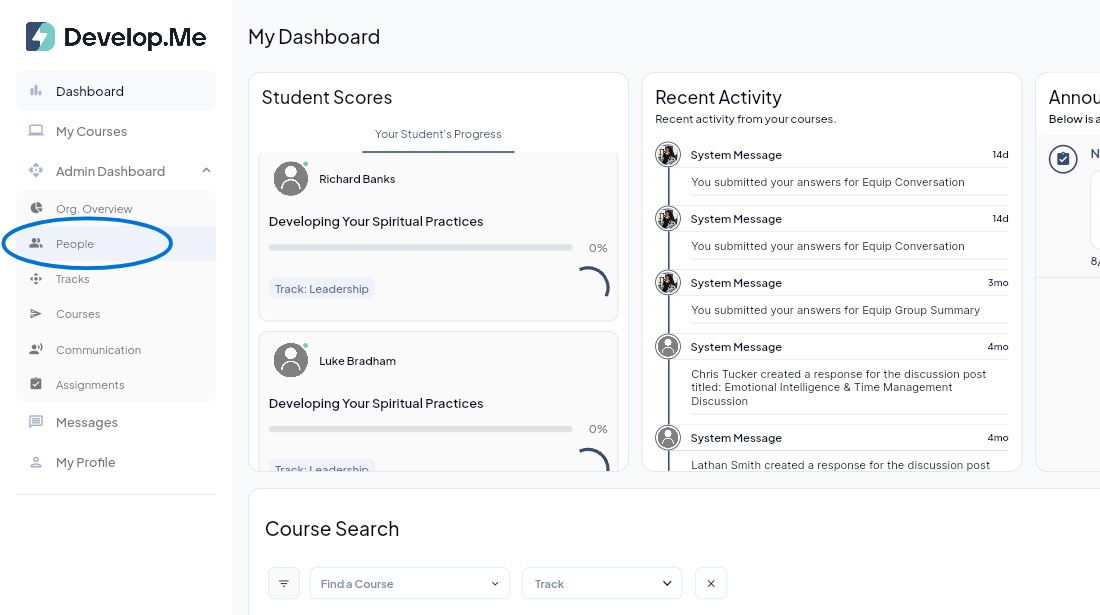
1. Navigate to the “People” tab from the left-hand menu bar to view and manage all users in your organization.
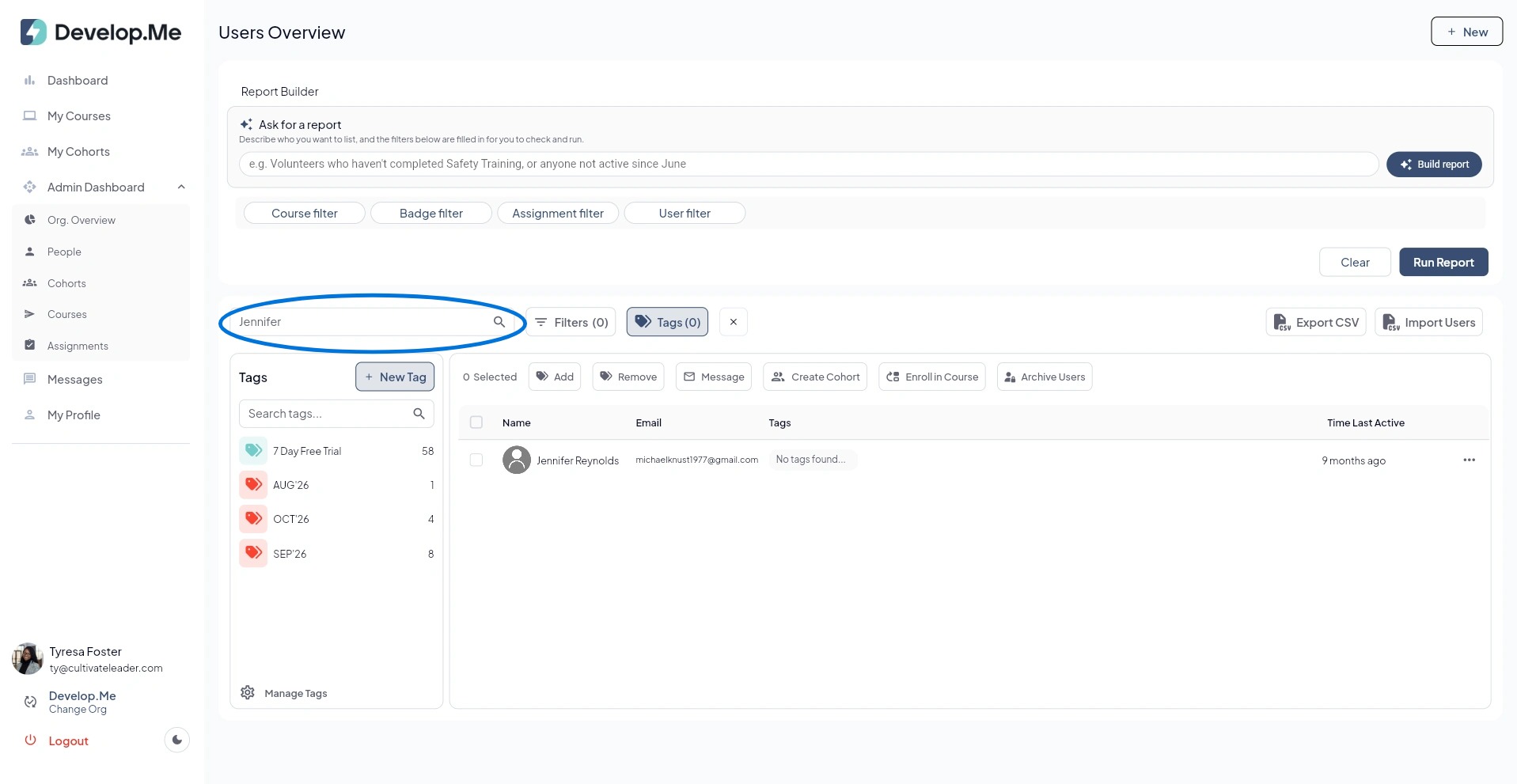
2. To look up an individual, type their name in the search bar.
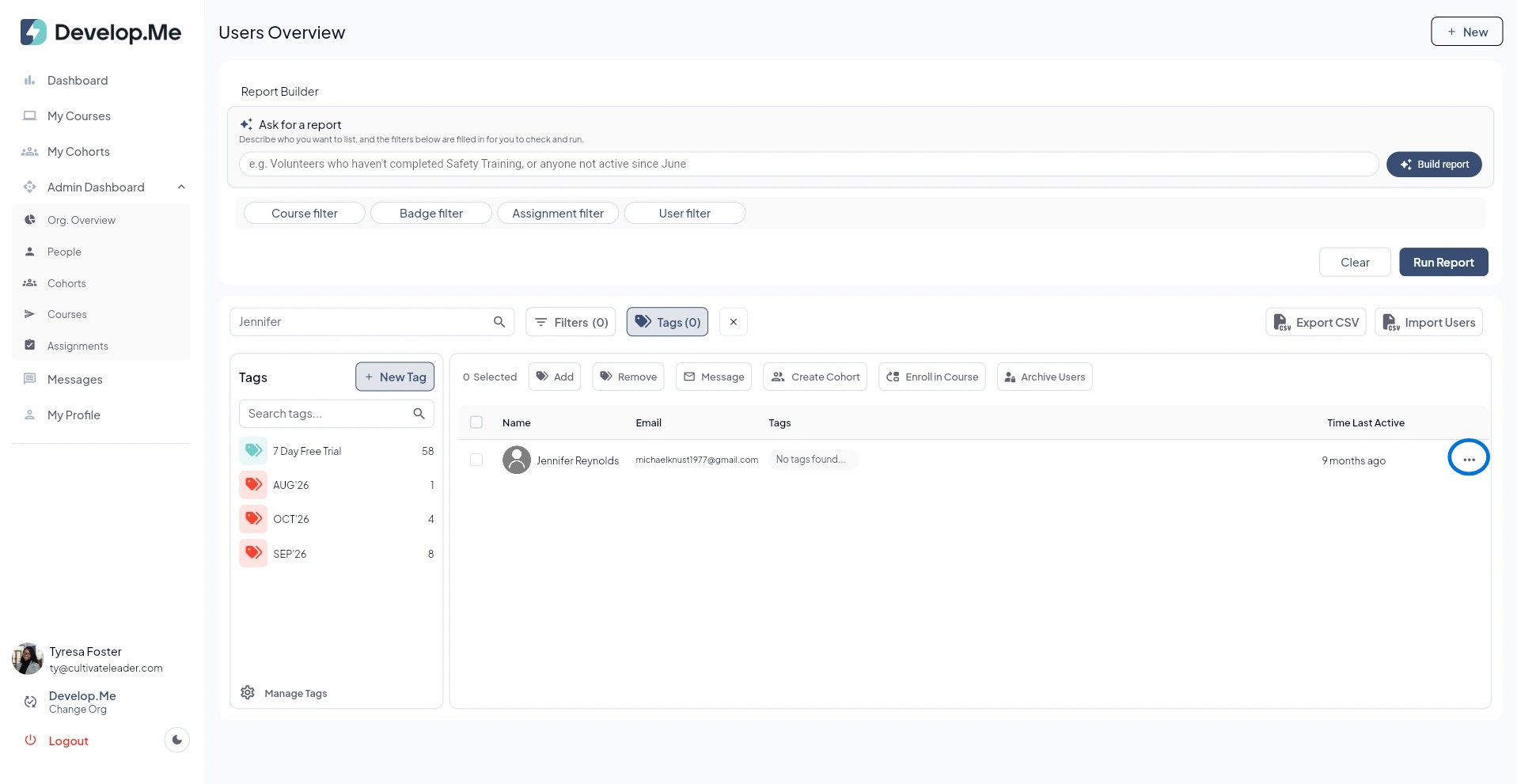
3. Click the three dots located to the far right of the user’s name, to open and view their full profile.
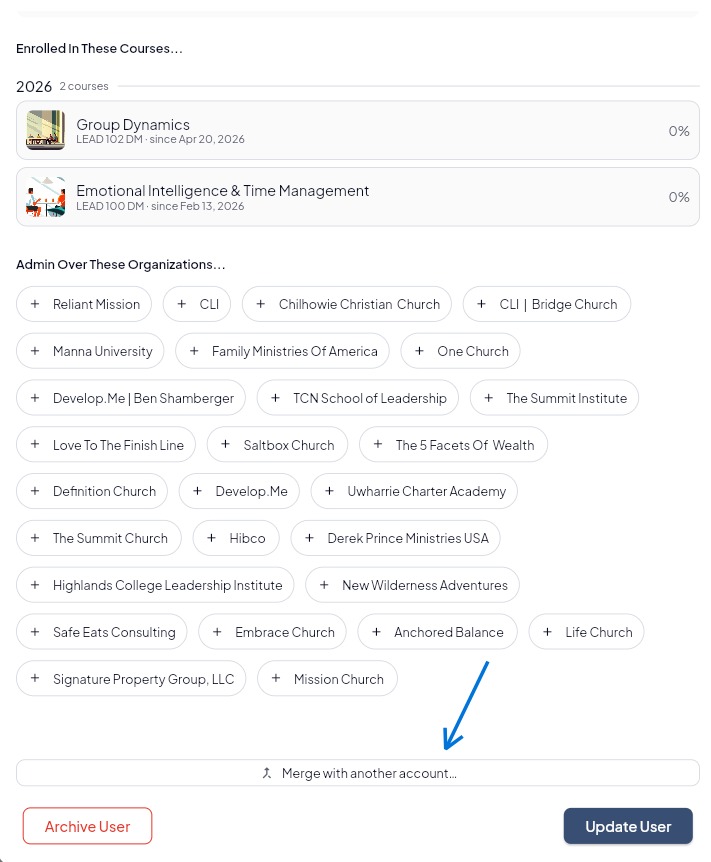
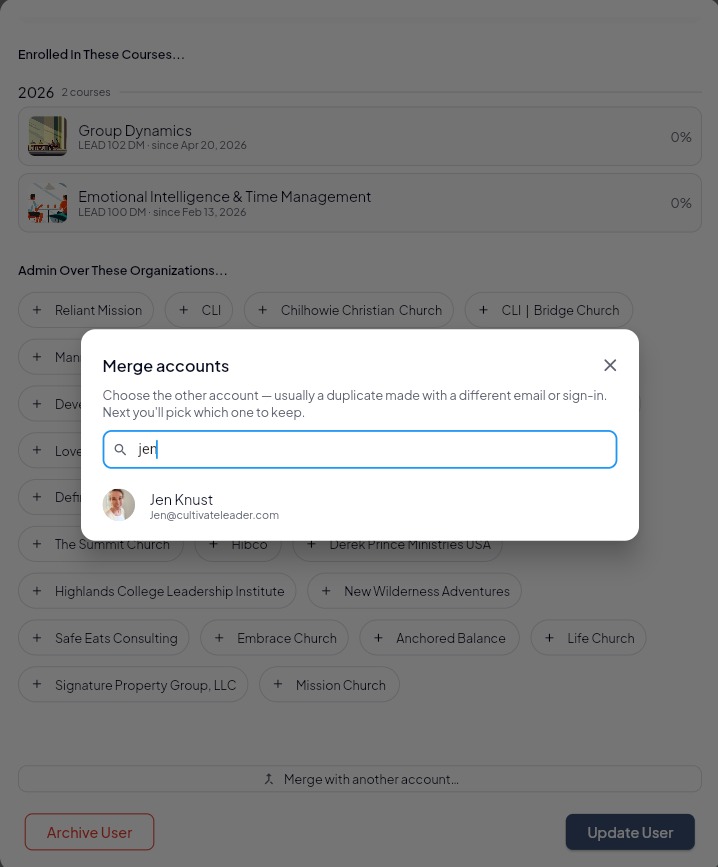
4. Next, scroll to the bottom of the user's profile and click "Merge with another account".
5. Use the search field to find the duplicate user account by entering the user's name or email address. Once the correct account appears, click on it to proceed to the next step.
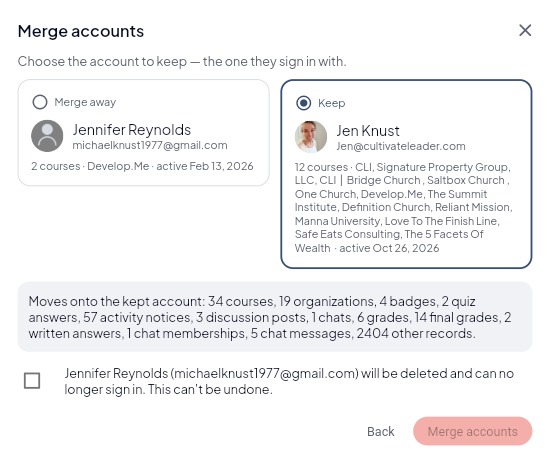
6. Next, select the account you wish to keep and review the information that will be transferred from the duplicate account. Be sure to select the account the user currently uses to sign in. Once. you've confirmed your selection, check the acknowledgment box and click "Merge accounts" to complete the process.
Important: The account being merged away will be permanently deleted and can no longer be used to sign in. This action cannot be undone.
7. Congratulations, you've successfully merged the users profiles into a single account.