
How To Schedule An Access Date To A Course
This guide walks you through the process of scheduling an access date for your course, allowing you to control when users can begin accessing course content and learning materials.
1. Navigate to the "Courses" tab in the left menu bar.
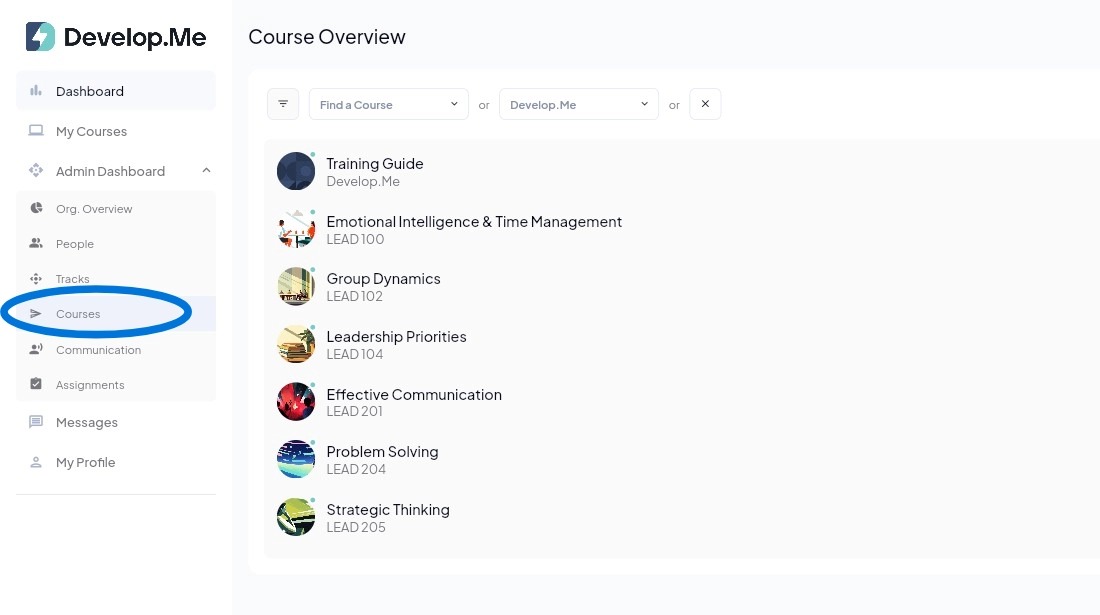
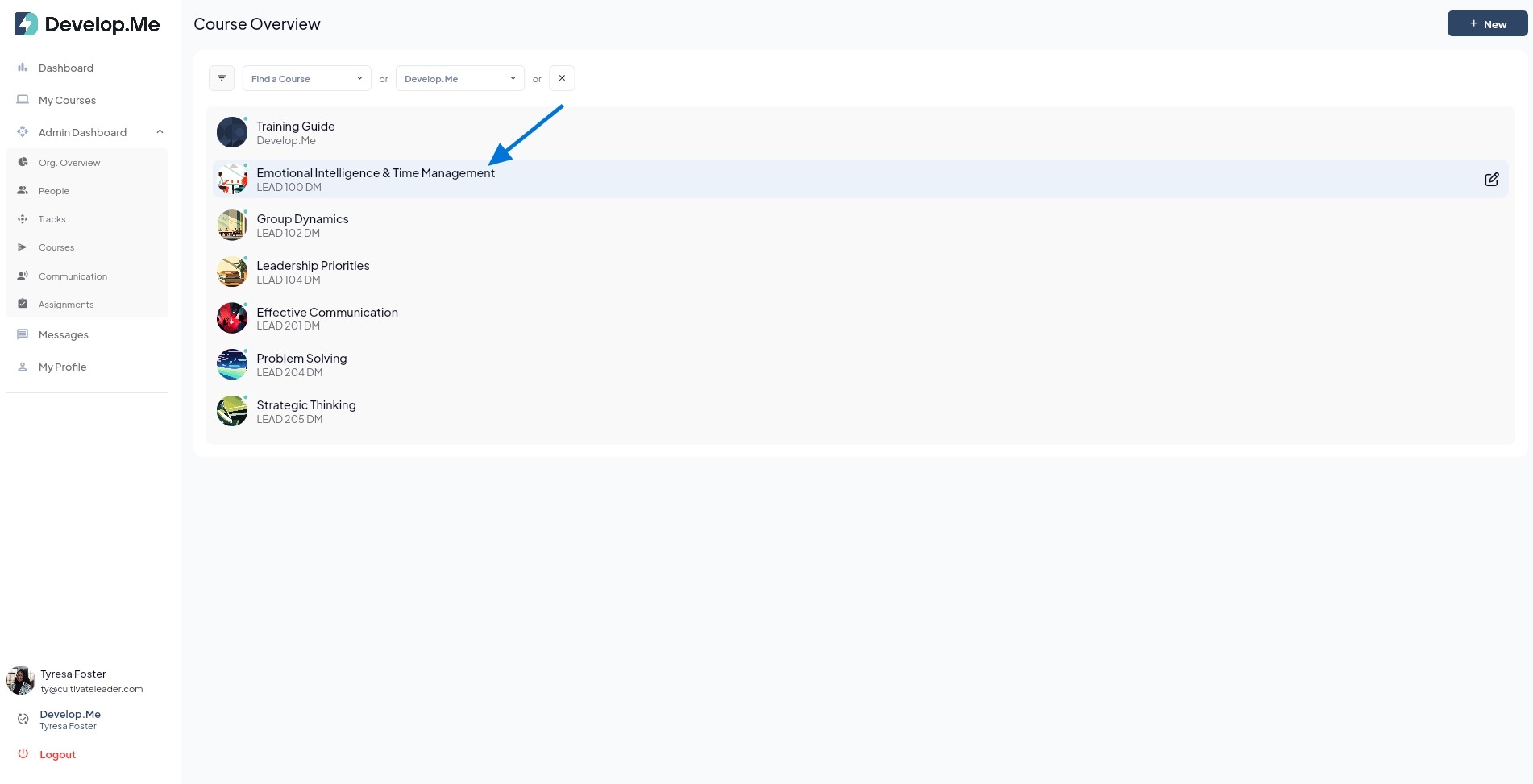
2. Next, select the course for which you want to set an access date for users.
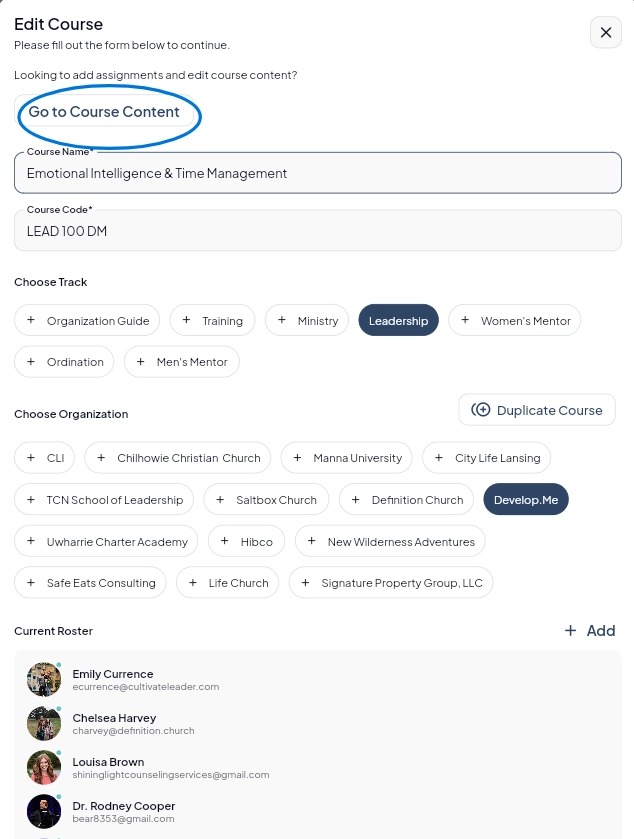
3. Click on “Go to Course Content” to access the full course and manage all course access date.
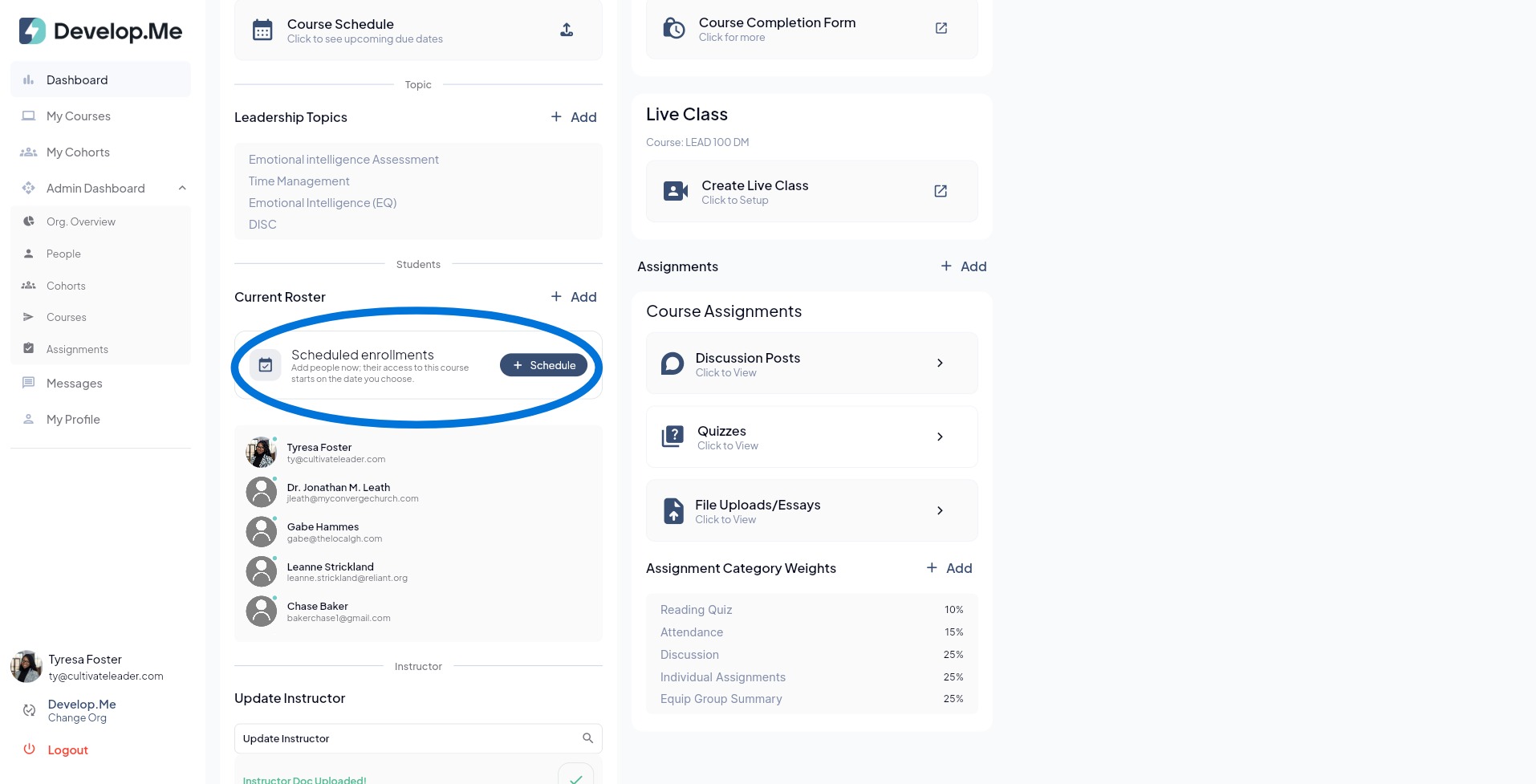
4. Under the "Current Roster" section, click the "+ Schedule" button to begin scheduling course access dates for users.
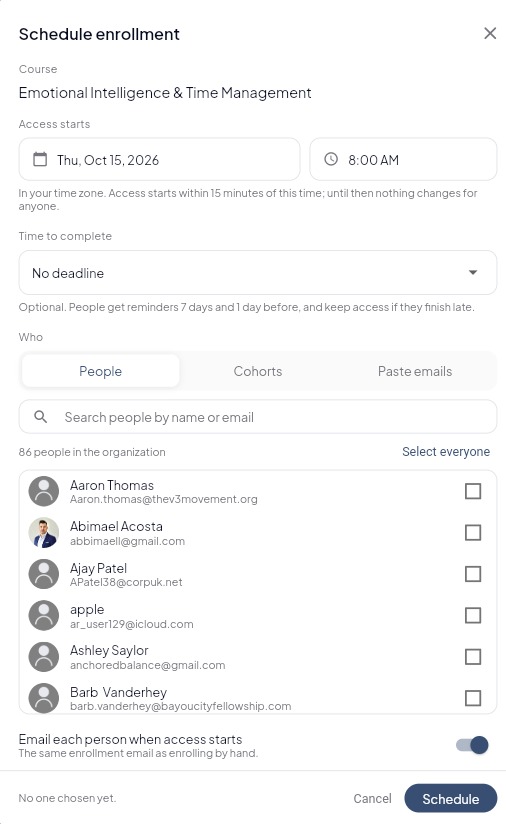
5. In the "Schedule Enrollment" window, select the date and time when course access should begin. Next, choose a completion deadline if applicable, and select the individuals or cohorts you want to enroll. You can also choose whether users receive an email notification when access begins. Once you've made your selections, click "Schedule" to confirm.
A few things to note:
- Users will receive an email notification announcing their upcoming course access date.
- Users will see an "Days Remaining" banner next to the course on their dashboard. This banner serves as a visual reminder of the approaching completion deadline. It will initially appear green and gradually change to red as the deadline approaches if the course has not been completed.
- Users can still access and successfully complete a course after the designated deadline. However, administrators will be able to see whether the course was completed within the required timeframe or after the deadline.
6. Congratulations! You've successfully scheduled a course access date.