
How To Manage Course Tags
This guide provides step-by-step instructions for deleting and editing tags. Tags help you organize courses, making it easier to filter, categorize, and manage information efficiently.
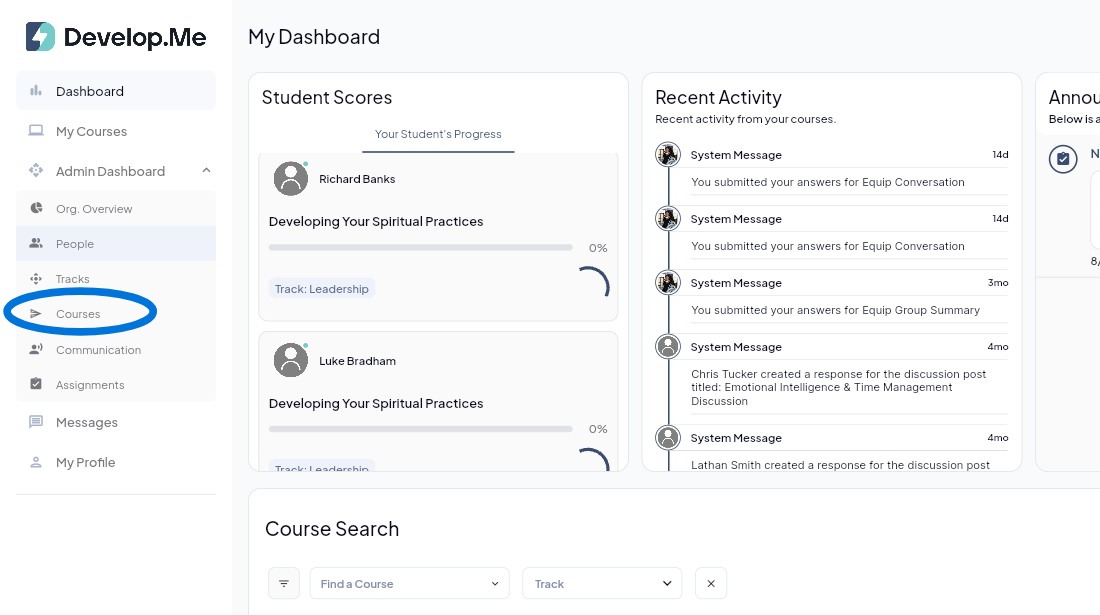
1. Navigate to the “Courses” tab from the left-hand menu bar to view and manage all tags.
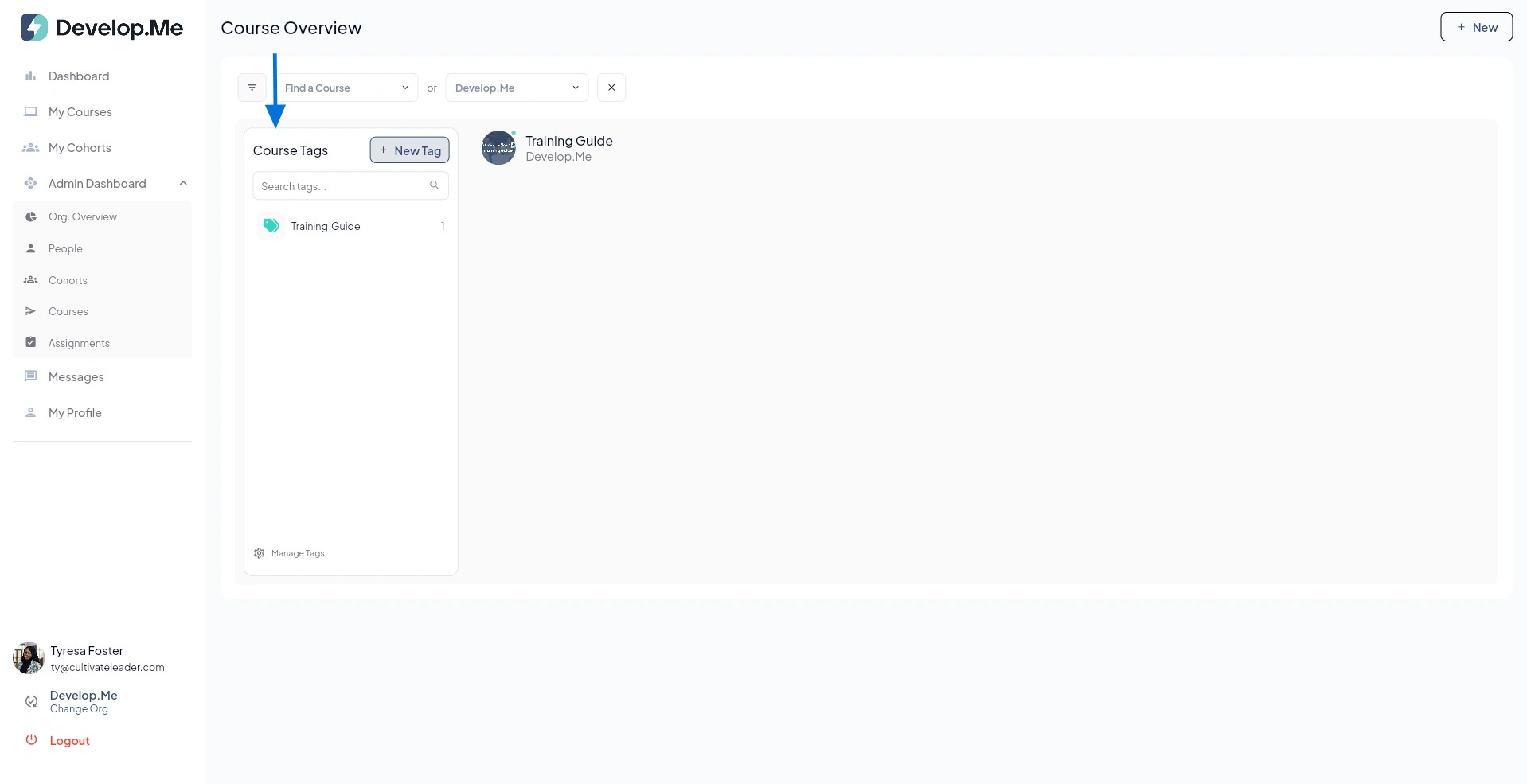
2. To edit or delete a tag, simply press and hold on the tag.
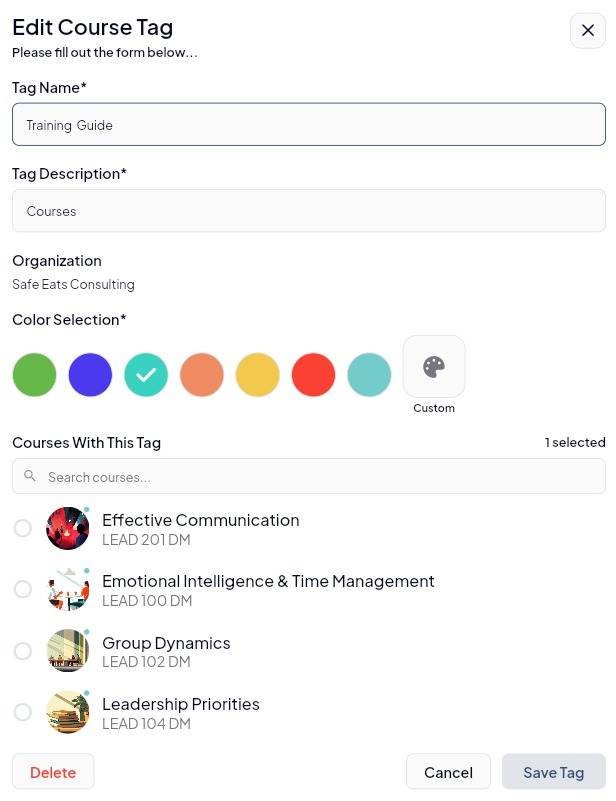
3. Make the necessary changes, then click "Save Tag" to save your edits. To permanently remove the tag, click Delete. Note: Deleting a tag removes it from all courses it is currently assigned to.
4. Congratulations! You've successfully updated or deleted a tag.