
How To Send A Bulk Announcement
This guide provides step-by-step instructions for admins and instructors on how to create and send announcements to multiple users within the platform. It is designed to help you communicate effectively with your users, share important updates, and ensure your messages reach the right audience.
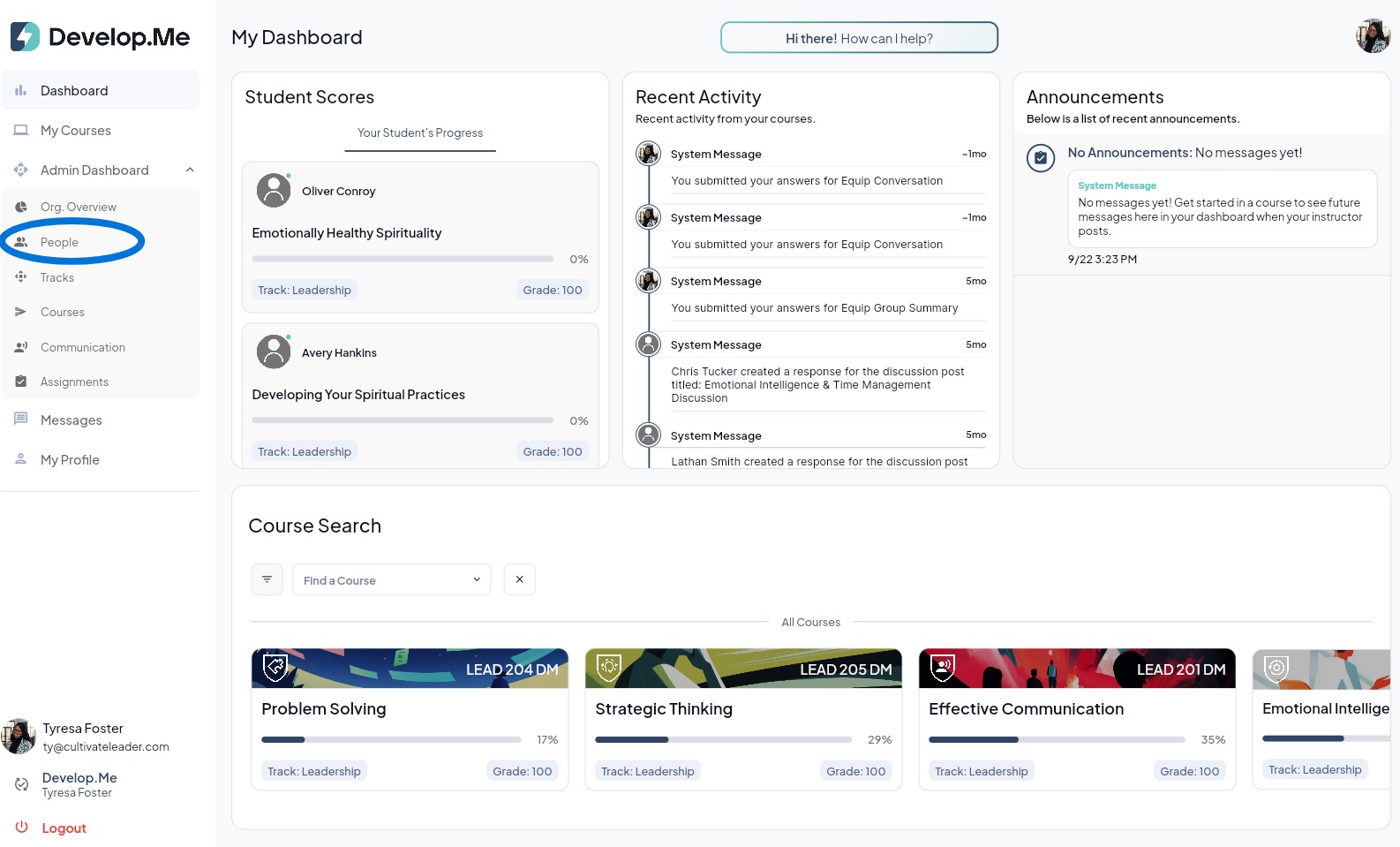
1. Navigate to “People”,from the left-hand menu.
2. Choose whether to send your announcement to all users or only to users with a specific tag in your organization. Review the recipient list and deselect any users you do not want to include before sending.
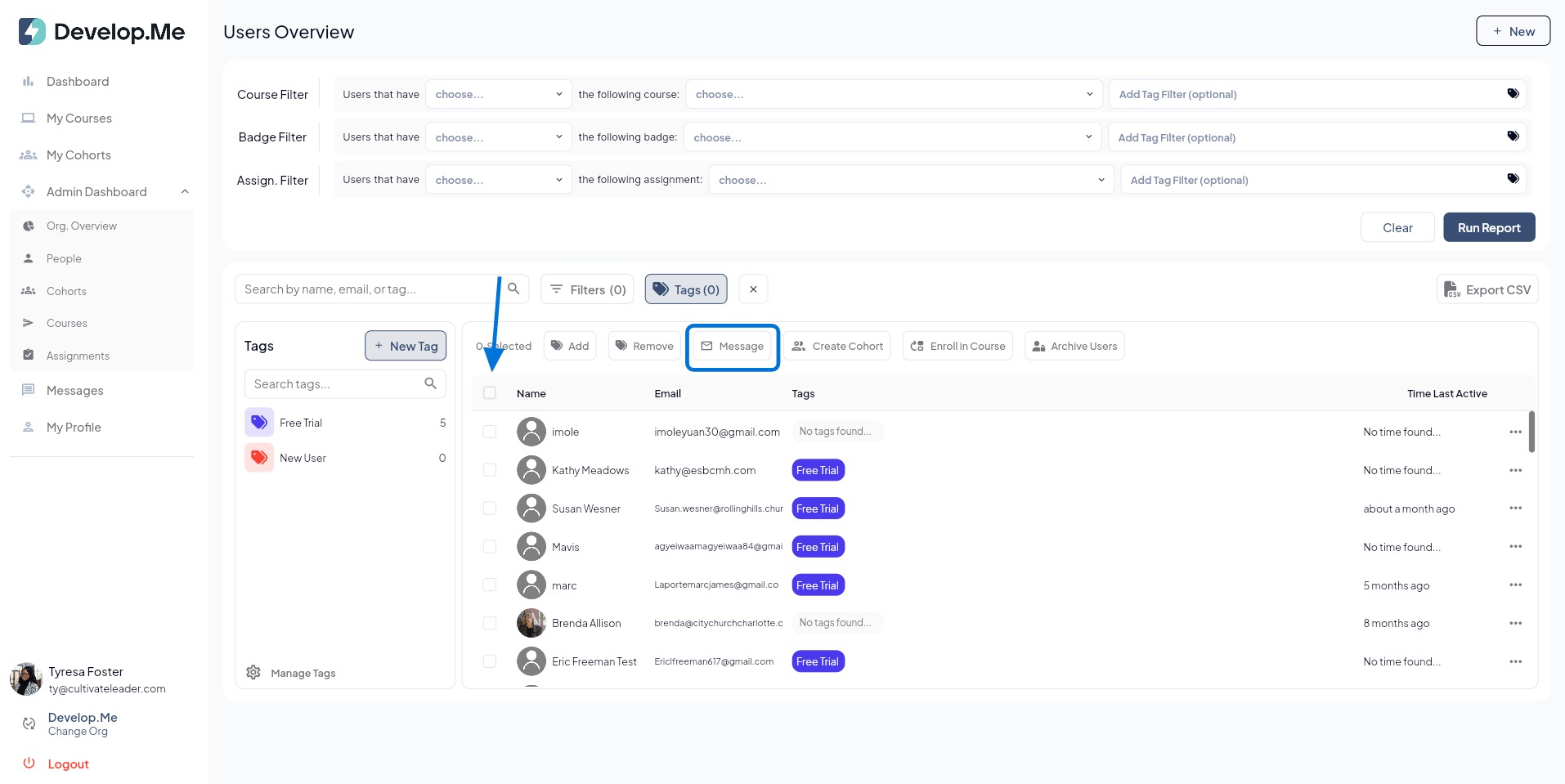
3. Next, click “Message” in the top menu tool bar.
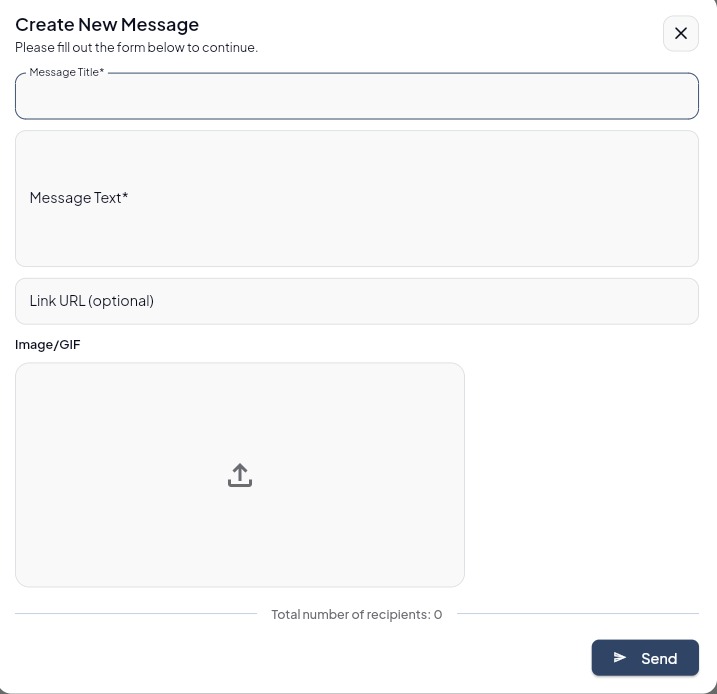
- Type a clear, descriptive subject so recipients immediately know the purpose of your announcement.
- In the Message Text box, enter the content of your announcement. This is the main body of your communication.
- If you want to direct users to a website, resource, or course material, paste the URL into the Link URL field, this step is optional.
- Confirm the total number of recipients displayed at the bottom of the form is correct.
- Once you are satisfied, click the Send button in the lower right corner.
4. Congratulations! You’ve successfully sent an announcement .