
How To Run A Report
Develop.Me provides reporting options to help track progress and engagement. This guide provides steps on how to run a report.
1. Develop.Me provides reporting options to help track progress and engagement:
- Course Reports show whether a user has or has not completed a course. This report allows admins to quickly determine overall course completion status and monitor engagement.
- Badge Reports indicate whether a user has earned or not earned specific badges. These reports are helpful for tracking milestone achievements and recognition.
- Assignment Reports reveal whether a user has completed or not completed required assignments.
Together, these reports give admins clear visibility into:
- Who has completed or not completed a course
- Who has earned or not earned badges
- Who has submitted or not submitted assignments
To run a report, follow the steps below.
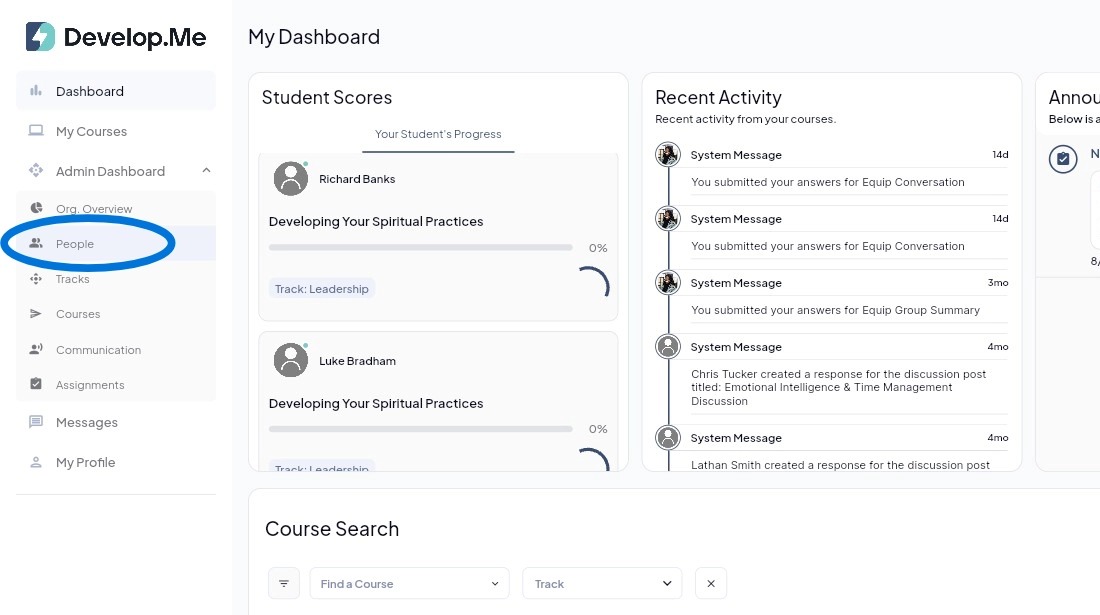
2. Navigate to the “People” tab from the left-hand menu bar to manage all reports.
3. Under “Ask for a report,” enter a description of the report you would like to generate. For example: “Show all users who have not completed their assigned courses.”
The AI feature will automatically configure the appropriate filters and parameters based on your description.
- Review the selected filters and parameters to ensure they match your reporting needs. Make any necessary adjustments.
- Click “Run Report” to generate your report.
Important: The AI feature only sets up the report parameters. It does not automatically generate the report. You must select “Run Report” to view the results.
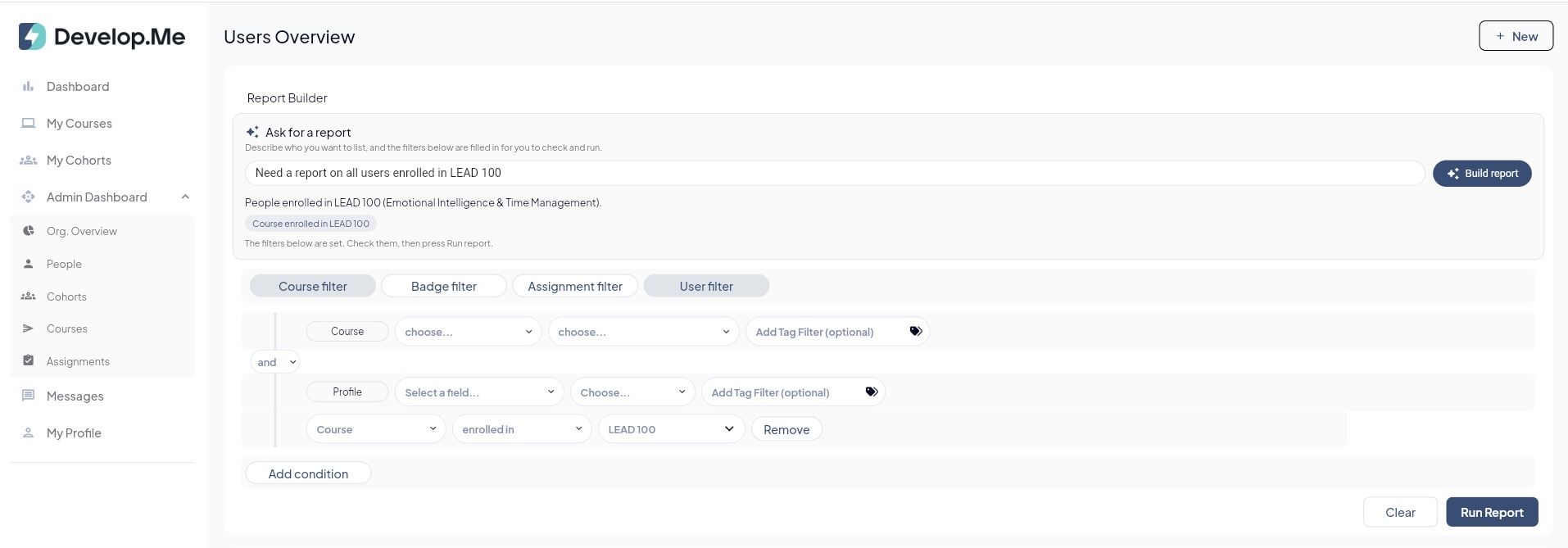
4. You can also run reports manually by selecting and configuring your desired report parameters without using the AI feature.
Only one report type can be run at a time. If you need multiple reports, you must run each one separately.
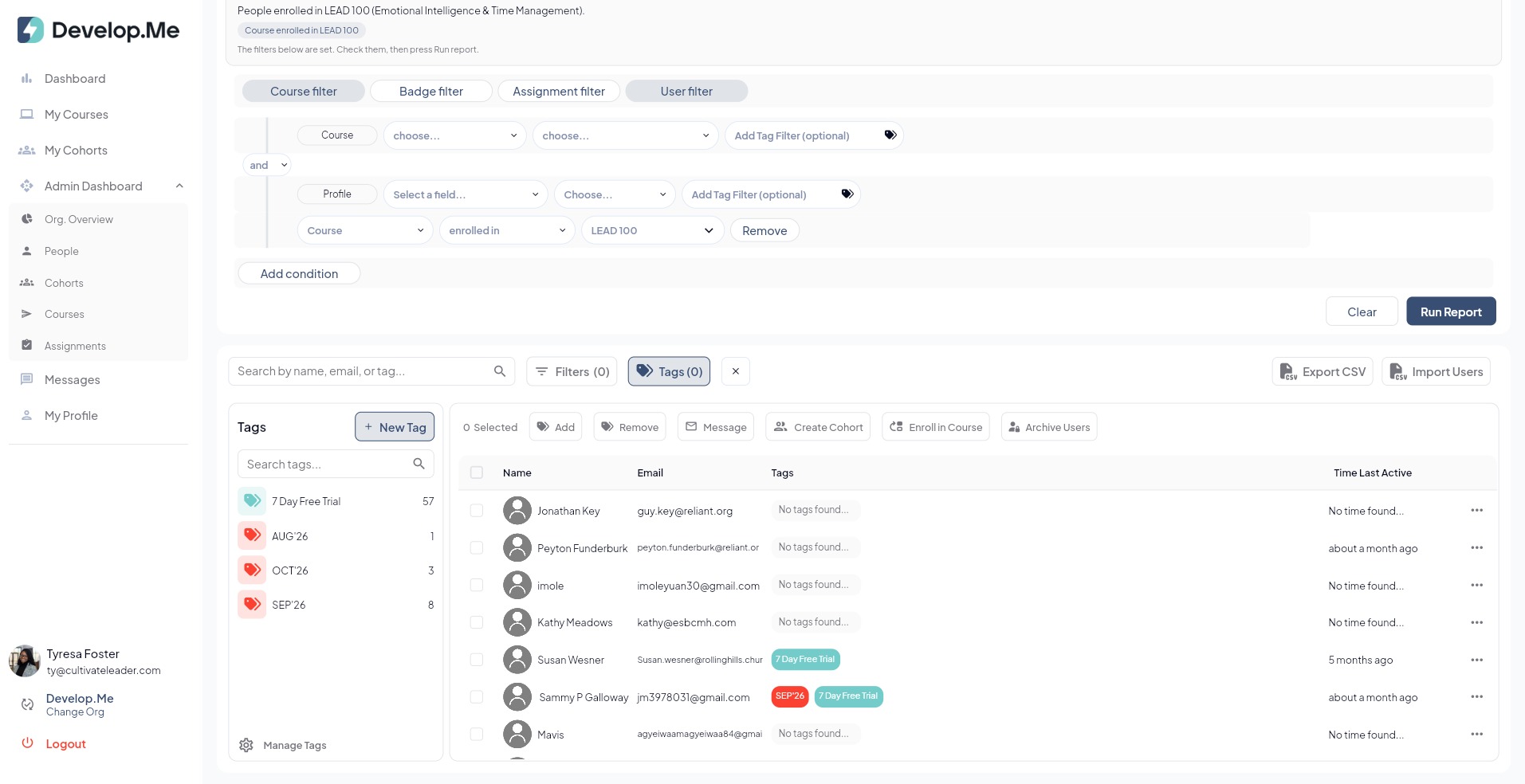
Click "Run Report" to generate the report and the system will display users who match your selected criteria.
Once the report has been generated, you can export the results to a CSV file for easy access, review, and further analysis.
5. Congratulations, you've successfully run a report!